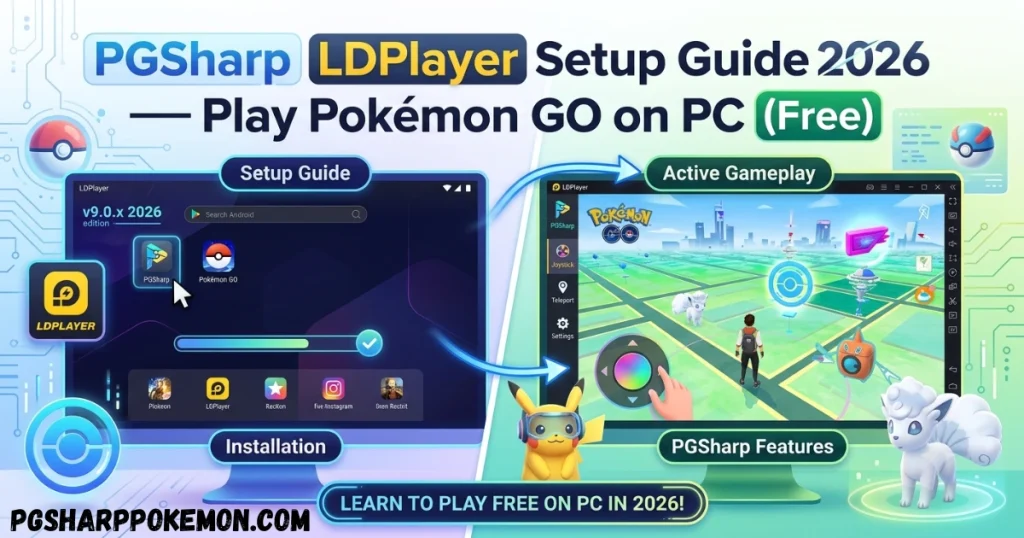
PGSharp LDPlayer Setup Guide 2026 — Play Pokémon GO on PC (Free)
Trying to run Pokémon GO on your PC in 2026 and hitting a wall of black screens, crashes, or outdated guides that still recommend BlueStacks?
You are not alone. Thousands of players want to ditch the small phone screen, save their phone battery, and play Pokémon GO comfortably from their desktop — with a big monitor, a mouse, and full keyboard controls. The problem is that most guides online are outdated. BlueStacks no longer works for Pokémon GO or PGSharp in 2026. Niantic tightened its detection, and BlueStacks’s updated engine blocks PGSharp from loading entirely.
The good news: LDPlayer works. It is currently the best free Android emulator for running PGSharp on PC in 2026 — lightweight, fast, and compatible with the latest PGSharp APK.
This guide walks you through every step: downloading LDPlayer, configuring it correctly, installing PGSharp, and fixing the most common errors that trip people up.
Quick Summary — What You Need
| Item | Details |
|---|---|
| Emulator | LDPlayer 9 (64-bit, Android 9) |
| PGSharp Version | Latest APK from pgsharp.com |
| OS Required | Windows 10 or Windows 11 (64-bit) |
| RAM Needed | 8 GB minimum (16 GB recommended) |
| Account | Pokémon Trainer Club (PTC) account — not Google |
| Cost | Free (PGSharp free version included) |
Why BlueStacks Does NOT Work in 2026
Before we start, let’s settle the BlueStacks question permanently — because many guides still recommend it.
BlueStacks does not work for Pokémon GO or PGSharp in 2026. The new BlueStacks 5 engine changed how it handles Android app verification. As a result:
- Pokémon GO crashes immediately or freezes at the loading screen
- PGSharp either fails to install or gets blocked at the login screen
- Even if it installs, GPS spoofing is detected almost instantly
The working alternatives in 2026 are LDPlayer 9 (best for low to mid-range PCs) and MuMu Player 6 (better for high-end PCs). This guide focuses on LDPlayer because it is lighter, easier to set up, and works on more machines.
System Requirements — Before PGSharp LDPlayer Setup
Make sure your PC meets these specs before downloading anything. LDPlayer is demanding — if your system is too weak, you will get lag, crashes, or black screens regardless of your settings.
| Requirement | Minimum | Recommended |
|---|---|---|
| Operating System | Windows 10 (64-bit) | Windows 11 (64-bit) |
| RAM | 8 GB | 16 GB |
| Processor | Intel Core i3 / AMD Ryzen 3 | Intel Core i5 / AMD Ryzen 5 or better |
| Storage | 10 GB free | 20 GB free (SSD preferred) |
| Graphics | DirectX 11 compatible GPU | Dedicated GPU (NVIDIA/AMD) |
| Virtualization | VT-x or AMD-V must be enabled in BIOS | Same |
| Internet | Stable connection | 10 Mbps or faster |
Important: If virtualization is not enabled in your BIOS, LDPlayer will either refuse to launch or run extremely slowly. This is the number one reason setup fails. Instructions for enabling it are in Step 2 below.
Step-by-Step: How to Install PGSharp on LDPlayer PC (2026)
Follow these steps in order. Do not skip ahead — especially the BIOS step.
Step 1 — Download LDPlayer 9
- Open your browser and go to the official LDPlayer website: ldplayer.net
- Click Download LDPlayer 9 (make sure it is the 64-bit version)
- Run the installer file once downloaded
- Follow the on-screen prompts to complete the installation
- Do not launch LDPlayer yet — complete Step 2 first
Always download from the official LDPlayer site. Third-party APK mirror sites sometimes bundle malware with the installer.
Step 2 — Enable Virtualization in BIOS (Critical Step)
This step confuses most beginners, but it is essential. Without virtualization enabled, LDPlayer runs on software emulation only — extremely slow and crash-prone.
How to check if virtualization is already on:
- Press Ctrl + Shift + Esc to open Task Manager
- Click the Performance tab → CPU
- Look for Virtualization: Enabled at the bottom right
If it already says Enabled, skip to Step 3. If it says Disabled, follow these steps:
Enabling VT-x (Intel CPUs):
- Restart your PC and press F2, F10, Del, or Esc during startup to enter BIOS (key varies by brand)
- Navigate to Advanced → CPU Configuration
- Find Intel Virtualization Technology and set it to Enabled
- Press F10 to save and exit
Enabling AMD-V (AMD CPUs):
- Enter BIOS as above
- Navigate to Advanced → CPU Configuration or SVM Mode
- Set SVM Mode to Enabled
- Save and exit
Common BIOS keys by brand: Dell → F2, HP → F10 or Esc, ASUS → Del or F2, Lenovo → F1 or F2, Acer → F2 or Del
Step 3 — Configure LDPlayer Settings
After virtualization is enabled, launch LDPlayer. Before installing anything, configure these settings for best PGSharp performance:
- Click the three-line menu (top right) → Settings
- Under Basic tab:
- Resolution: 1280 × 720 (720p — stable for most PCs)
- DPI: 240
- Under Advanced tab:
- Number of CPU Cores: 4 (or half your total cores)
- RAM Allocation: 4096 MB (4 GB minimum)
- Graphics Engine Mode: DirectX (switch to OpenGL if you get a black screen)
- OpenGL render: Compatible mode if you experience crashes
- Click Save — LDPlayer will restart
Low-end PC tip: If your PC has only 8 GB RAM total, set LDPlayer to 2048 MB RAM and 2 CPU cores. This leaves enough headroom for Windows itself to run without freezing.
Step 4 — Download the PGSharp APK
- On your PC browser (not inside LDPlayer), go to pgsharp.com
- Click the download button to get the latest PGSharp APK
- Save it somewhere easy to find — your Desktop works well
- Do NOT install it on your phone — we will load it into LDPlayer next
Use the official PGSharp website only. Third-party APK download sites often serve outdated or modified versions that may contain malware or fail to work with the latest Pokémon GO update.
Step 5 — Install PGSharp APK in LDPlayer
There are two methods — use whichever is easier:
Method A — Drag and Drop (Easiest):
- Open LDPlayer
- Drag the PGSharp APK file directly into the LDPlayer window
- An installation prompt will appear — click Install
- Wait for installation to complete
Method B — APK Installer Button:
- In LDPlayer, look for the APK icon on the right-side toolbar
- Click it and browse to your downloaded PGSharp APK file
- Select the file and install
Once installed, PGSharp will appear in the LDPlayer app drawer.
Step 6 — Enable Developer Options and Mock Location in LDPlayer
This step is what makes GPS spoofing actually work. Without it, PGSharp cannot override your location.
- Inside LDPlayer, open Settings (the Android settings app)
- Scroll to About Phone (or About Tablet)
- Tap Build Number seven times rapidly until you see “You are now a developer”
- Go back to the main Settings menu → Developer Options should now appear
- Inside Developer Options:
- Enable Developer Options toggle (ON)
- Scroll to Select mock location app
- Tap it and select PGSharp
- Also enable Allow mock locations if that option is visible
If you cannot find Developer Options after tapping Build Number, restart LDPlayer and try again. Some LDPlayer versions hide the About Phone menu under System → About Phone.
Step 7 — Set GPS Mode to Device Only
- Still in Android Settings inside LDPlayer, go to Location (or Privacy → Location)
- Set Location mode to Device Only (GPS only — not Wi-Fi or mobile network)
- Turn Location ON
Step 8 — Launch PGSharp and Log In
- Open the PGSharp app from the LDPlayer app drawer
- At the login screen, use your Pokémon Trainer Club (PTC) account
Critical: PGSharp on PC does NOT support Google account login. You must use a PTC account. If you only have a Google account linked to Pokémon GO, create a free PTC account first at pokemongolive.com and link it to your game before proceeding.
- Once logged in, the PGSharp overlay (joystick + map) will appear on top of Pokémon GO
- Set your starting location by tapping anywhere on the PGSharp map
- Wait for the cooldown timer before catching any Pokémon or spinning PokéStops
You are now running PGSharp on PC through LDPlayer.
LDPlayer Performance Settings — Best Configuration for PGSharp 2026
These settings help reduce crashes and improve GPS accuracy inside LDPlayer:
| Setting | Recommended Value | Why |
|---|---|---|
| Graphics Engine | DirectX (try OpenGL if crashing) | Better compatibility |
| FPS | 60 | Smooth gameplay |
| CPU Cores | 4 | Balanced performance |
| RAM | 4096 MB | Prevents freeze |
| Resolution | 1280×720 | Best stability balance |
| GPS Mode (Android) | Device Only | Required for spoofing |
| Location App | PGSharp (mock) | Set in Developer Options |
SSD vs HDD: If your PC has both, install LDPlayer on the SSD. This dramatically reduces load times and prevents the Pokémon GO 99% loading freeze.
How to Use PGSharp Features on PC
Once running, all PGSharp features work exactly as they do on a real Android device:
Joystick (Keyboard Controls): On PC, you can map the virtual joystick to keyboard keys inside LDPlayer’s keyboard control settings. Go to the keyboard icon on the LDPlayer toolbar, assign WASD or arrow keys to joystick directions, and walk your character without using a mouse.
Teleport: Tap anywhere on the built-in PGSharp map or enter coordinates manually. Always wait for the cooldown timer before interacting with the game after teleporting.
Cooldown Rules: These rules apply on PC just as they do on mobile. Skipping them is the fastest way to get a soft ban — regardless of which device or emulator you use.
| Distance Teleported | Wait Before Catching |
|---|---|
| Up to 10 km | 7 minutes |
| Up to 100 km | 30 minutes |
| Over 100 km | 2 hours |
Quick Sniper, Block Non-Shiny, Virtual GO Plus: All Standard Edition features work normally through LDPlayer. The larger screen actually makes Quick Sniper easier to use — coordinates are easier to read on a monitor.
Common Errors — PGSharp LDPlayer Not Working? Fix Here
Error 1: Black Screen on Launch
Cause: Virtualization not enabled, or wrong graphics mode.
Fix:
- Confirm virtualization is enabled in BIOS (Task Manager → Performance → CPU → Virtualization: Enabled)
- In LDPlayer Settings → Advanced, switch Graphics Engine from DirectX to OpenGL (or vice versa)
- Reduce RAM allocation if your PC has less than 12 GB total
- Try running LDPlayer as Administrator (right-click → Run as administrator)
Error 2: GPS Signal Not Found (Error 11)
Cause: Mock Location is not set to PGSharp, or Developer Options reset after a LDPlayer update.
Fix:
- Go back to Developer Options inside LDPlayer Android Settings
- Confirm Select mock location app is set to PGSharp
- Turn Location mode off and back on
- Restart LDPlayer completely
Error 3: “Device Not Compatible” or Login Fails
Cause: LDPlayer version conflict, or using a Google account instead of PTC.
Fix:
- Switch to a PTC account — Google login does not work on PC with PGSharp
- Try LDPlayer version 9.0.x if you are on a newer build with issues
- Clear LDPlayer’s app data and reinstall PGSharp
Error 4: Joystick Not Appearing
Cause: Mock location not properly configured, or PGSharp overlay permission missing.
Fix:
- Open PGSharp → Settings → confirm joystick is enabled
- Go to Android Settings → Apps → PGSharp → Permissions → enable all permissions
- Reset mock location app selection in Developer Options
- Restart LDPlayer and relaunch PGSharp
Error 5: Game Stuck at 99% Loading Screen
Cause: RAM or storage bottleneck inside LDPlayer, or a Pokémon GO / PGSharp version mismatch.
Fix:
- Increase RAM allocation to 4096 MB in LDPlayer settings
- Clear Pokémon GO cache: Android Settings → Apps → Pokémon GO → Storage → Clear Cache
- Check pgsharp.com for a new APK — if Pokémon GO updated recently, wait 24–48 hours for a PGSharp compatibility patch
- Move LDPlayer install folder to an SSD if you are running it from a slow HDD
Error 6: PGSharp Works But Pokémon GO Crashes Immediately
Cause: Pokémon GO detecting emulator environment.
Fix:
- In LDPlayer Settings → Advanced, enable Root mode temporarily then disable it — this sometimes resets the detection fingerprint
- Try a different LDPlayer Android version (LDPlayer supports multiple Android builds)
- Reinstall PGSharp with a fresh APK download directly from pgsharp.com
LDPlayer vs MuMu Player 6 — Which One Should You Use?
Both are working options in 2026. Here is a quick comparison to help you decide:
| Feature | LDPlayer 9 | MuMu Player 6 |
|---|---|---|
| Best for | Low to mid-range PCs | High-end PCs |
| RAM Usage | Lower (~2–3 GB) | Higher (~3–4 GB) |
| Setup Difficulty | Easy | Medium |
| PGSharp Stability | Good | Very good |
| Android Version | Android 9 | Android 9 / 11 |
| Free | Yes | Yes |
| Recommended for Beginners | ✅ Yes | Not first choice |
Recommendation: Start with LDPlayer. If you have a powerful PC (16 GB+ RAM, dedicated GPU) and LDPlayer feels unstable, try MuMu Player 6 as an alternative.
Frequently Asked Questions
Is PGSharp free on LDPlayer / PC? Yes. The PGSharp free version works fully on LDPlayer and includes GPS spoofing, joystick, teleport, and autowalk at no cost. The Standard Edition (~$5/month) adds Quick Catch, Block Non-Shiny, Quick Sniper 2.0, and other premium features — these also work on PC through LDPlayer.
Can I get banned for using PGSharp on LDPlayer? The ban risk on LDPlayer is similar to using PGSharp on a real Android device. Always follow cooldown rules strictly, use an alternate account first, and avoid suspicious movement patterns. Running an emulator does not automatically increase your ban risk if everything is configured correctly.
Why does BlueStacks not work in 2026? BlueStacks updated its engine in a way that conflicts with how Pokémon GO and PGSharp load on Android. The game either crashes at launch or refuses to pass the loading screen. LDPlayer and MuMu Player 6 are the current working alternatives.
Can I run PGSharp on a Mac? PGSharp is Android-only, and LDPlayer only supports Windows. Mac users can try using a virtual machine running Windows, or use an iOS spoofing alternative such as iPogo or Dr.Fone Virtual Location (neither is PGSharp, but they support similar features).
How much RAM does LDPlayer need for PGSharp? Allocate at least 4 GB of RAM to LDPlayer for stable performance. Your PC should have at least 8 GB total RAM — 4 GB for LDPlayer and 4 GB left for Windows and background processes.
PGSharp updated — do I need to reinstall? No. Download the latest PGSharp APK from pgsharp.com and install it directly over your existing version inside LDPlayer. You do not need to uninstall the old version first. Always update within 24–48 hours of a new Pokémon GO update to stay compatible.
Do I need a separate Google account for LDPlayer? You need to sign into the Google Play Store inside LDPlayer for some functions, but for PGSharp itself you must use a PTC (Pokémon Trainer Club) account. Create one free at pokemongolive.com if you do not have one.
Conclusion
Running PGSharp on PC through LDPlayer is one of the best ways to enjoy Pokémon GO in 2026 — larger screen, no battery drain, precise mouse control, and all PGSharp features fully intact.
The setup takes around 15–20 minutes if you follow the steps above in order. The most common sticking point is virtualization — confirm it is enabled in your BIOS before anything else, and most problems disappear.

Muhammad Younas is an expert in Pokémon Go enhancements, with a special focus on PGSharp. He provides in-depth guides and tips to help players make the most out of PGSharp for a smoother and more enjoyable gaming experience. Dedicated to staying up-to-date with the latest developments, Muhammad shares valuable insights to help both new and experienced players enhance their gameplay. Follow him for the latest updates and tricks in the world of Pokémon Go.