PGSharp for PC: How to Use PGSharp on Windows 10 & 11
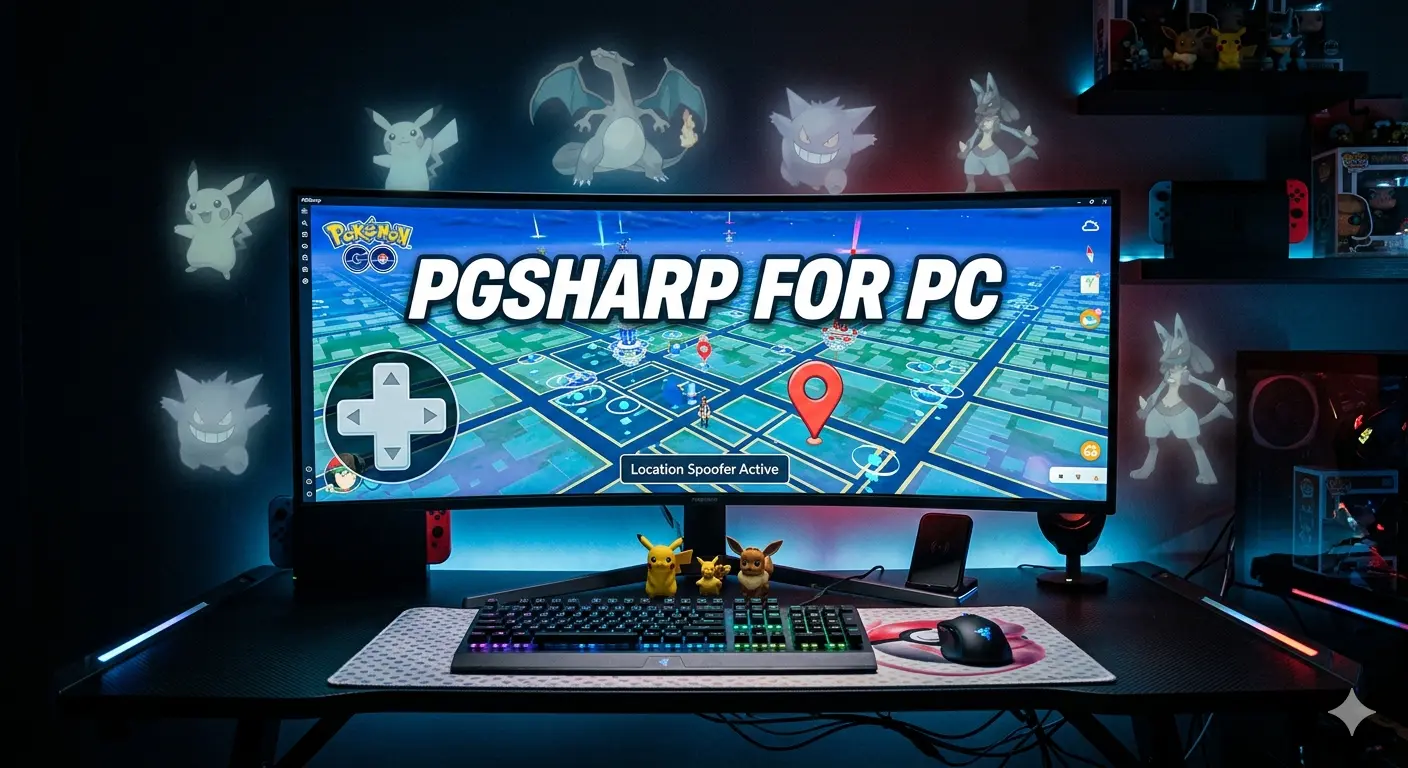
If you’re looking for a way to use PGSharp on a PC, there is one important thing to understand first: PGSharp is designed for Android, not as a native Windows application. To run it on a Windows computer, you need a compatible Android environment or emulator.
This guide explains how PGSharp can be used on a PC, what you need before getting started, how the setup works, what to check if it does not work correctly, and what limitations you should understand beforehand.
Quick answer: PGSharp does not provide a native Windows version. PC users need an Android environment capable of running the PGSharp app. Compatibility can depend on the current PGSharp release, Android version, emulator, and computer hardware.
Can You Use PGSharp on a PC?
Yes, PGSharp can be used in an Android environment running on a Windows PC, but it is important to distinguish this from having a dedicated Windows version.
PGSharp’s official download information is focused on Android, with the current version requiring Android 9 or above.
That means a Windows computer does not install PGSharp in the same way as a normal Windows application. Instead, the Android application needs to run inside a compatible Android environment.
The exact experience can vary depending on:
- Your Windows version
- The Android environment or emulator you use
- Your computer’s CPU and RAM
- Hardware virtualization
- Graphics performance
- The current PGSharp release
- Compatibility between the emulator and Pokémon GO
What Is PGSharp for PC?
PGSharp is a modified Pokémon GO client that provides additional gameplay features, including location-based controls, joystick movement, map tools, IV information, feeds, and other utilities. The official PGSharp feature list includes tools such as Joystick, Nearby Radar, Encounter IV, Inventory IV, GPX support, Quick Catch, Cooldown Timer, and several automation-related features.
When people search for PGSharp for PC, they are usually looking for a way to access these Android features while playing through a Windows computer.
It is therefore more accurate to think of “PGSharp for PC” as PGSharp running inside an Android environment on a PC, rather than a separate Windows edition of PGSharp.
What Do You Need to Run PGSharp on PC?
Before installing anything, check that your computer can comfortably run an Android environment.
Basic things to check
- A Windows PC or laptop
- A stable internet connection
- Enough available RAM
- Sufficient free storage
- CPU virtualization support
- Graphics support suitable for your selected Android environment
- A compatible Android environment
- A current PGSharp release
The exact hardware requirements can vary because the emulator itself also uses system resources.
If your computer has limited RAM or an older processor, running Pokémon GO and an Android environment together may result in lag, crashes, or slow loading.
Check virtualization
Hardware virtualization can make a significant difference when running Android environments on Windows.
Depending on your computer, it may appear in BIOS/UEFI under names such as:
- Intel VT-x
- Intel Virtualization Technology
- AMD-V
- SVM Mode
If your emulator performs poorly, checking whether virtualization is enabled can be one of the useful troubleshooting steps.
How to Use PGSharp on PC
The general process involves running an Android environment on Windows and then installing PGSharp within that environment.
Because emulator interfaces and PGSharp releases can change, the exact buttons and menus may not remain the same over time.
Step 1: Check the current PGSharp requirements
Before downloading anything, check the current PGSharp release and Android requirement.
The official PGSharp website currently lists Android 9.0 or above for its latest version.
Do not rely on an old article or an old APK requirement if the official requirement has changed.
Step 2: Choose an Android environment
Install an Android environment that is suitable for your computer.
Popular Android environments used by PC users can change over time, so compatibility should be checked rather than assuming that every emulator will work equally well.
Your choice may depend on:
- Android version provided
- Performance
- RAM usage
- Graphics compatibility
- Keyboard/mouse controls
- Virtualization support
- Current compatibility with the apps you want to run
Step 3: Set up the Android environment
Complete the initial Android setup and allow it to finish installing its required components.
If the environment is running slowly at this stage, fix the performance issue before installing additional applications.
Step 4: Obtain PGSharp from an appropriate source
Use the current PGSharp download information and avoid relying on random APK mirrors.
PGSharp’s official website provides its current download options and version information.
This is particularly important because old or modified APK files may not behave like the current release.
Step 5: Install PGSharp
Install the appropriate PGSharp package inside the Android environment.
If Android blocks the installation or reports that the package cannot be installed, do not repeatedly install random APK files.
Instead, check:
- Android version
- APK compatibility
- Available storage
- Whether an older installation is interfering
- Whether the downloaded file is complete
- Whether the current PGSharp release supports your environment
Step 6: Open PGSharp
After installation, launch PGSharp from the Android environment.
You may need to complete the normal application/login process before using its features.
Step 7: Test the setup
Before changing multiple settings, check whether:
- PGSharp opens normally
- Pokémon GO loads
- Your account can sign in
- The map loads
- Location-related controls respond
- The emulator remains stable
Testing one thing at a time makes troubleshooting much easier.
PGSharp on Windows 11
Windows 11 users can run Android environments, but compatibility is not determined by Windows alone.
Your experience can also depend on the Android version provided by the emulator, virtualization settings, graphics drivers, and the current PGSharp release.
If PGSharp does not work correctly on Windows 11, check these first:
- Is virtualization enabled?
- Is your Android environment up to date?
- Does it provide a compatible Android version?
- Is enough RAM available?
- Are your graphics drivers current?
- Is the PGSharp release compatible with your Android environment?
- Does Pokémon GO itself require an update?
Avoid assuming that a problem is caused by Windows 11 simply because the application is running on Windows 11.
PGSharp on Windows 10
The same general principle applies to Windows 10.
PGSharp is not installed as a normal Windows .exe application. You need an Android environment capable of running the Android application.
If performance is poor on Windows 10, check your computer’s:
- RAM
- CPU
- virtualization
- graphics support
- available storage
- background applications
Closing unnecessary applications can also help when your computer is close to its resource limits.
Which Emulator Is Best for PGSharp?
There is no universal answer to which emulator is “best.”
Performance can vary between computers, Android versions, emulator builds, and graphics configurations.
Instead of claiming that one emulator is always superior, compare them using practical factors:
| Factor | Why It Matters |
|---|---|
| Android version | PGSharp has Android requirements |
| RAM usage | Affects overall PC performance |
| CPU usage | Important for emulator stability |
| Graphics support | Can affect rendering and performance |
| Virtualization | Can improve emulator performance |
| Controls | Important for keyboard/mouse users |
| Stability | Frequent crashes make setup frustrating |
| Compatibility | Must work with the current software versions |
If you are deciding between specific options, a separate comparison guide can provide a more useful and detailed answer.
Recommended related article:
[Best Emulator for PGSharp on PC]
PGSharp Features You Can Use
PGSharp offers a large number of features, but the available features can depend on the current version and edition.
The official feature list includes:
- Joystick
- Location spoofing
- Encounter IV
- Inventory IV
- Nearby Radar
- GPX support
- Quick Sniper/feeds
- Cooldown Timer
- Auto Incubator
- Quick Catch
- Skip Cutscenes
- Block Non-Shiny
- Auto Transfer
- Virtual GO Plus
- Raid & Gym Battle Assistant
- Quest Assistant
- PvP Rank
- Enhanced Throw
Instead of explaining every feature in detail on this PC guide, it is better to create separate, focused guides for the features that users search for most.
For example:
- PGSharp Nearby Radar Guide
- PGSharp 100 IV Feed Guide
- PGSharp GPX Guide
- PGSharp Quick Catch Guide
- PGSharp Cooldown Guide
This keeps the PC article focused while creating useful internal links across the website.
PGSharp Free vs Standard on PC
PGSharp currently offers a free version and a Standard Edition. The official site lists the free version with features such as Teleport/Joystick, Autowalk, Favorites, Enhanced Throw, IV information, Custom GPX, 100 IV Feed, and Nearby Radar.
The Standard Edition adds additional features including All Coordinates Feed, Quick Catch, Skip Animations, Block Non-Shiny, and Auto Transfer on Catch.
Features and pricing can change, so check the current official information before purchasing.
If you are interested only in running PGSharp on a PC, remember that the PC setup itself does not automatically mean that every paid feature becomes available.
PGSharp Not Working on PC? Common Problems and Fixes
Running an Android application through a PC adds another layer where problems can occur. If PGSharp is not working correctly, start with the basics rather than immediately reinstalling everything.
PGSharp Won’t Open
Possible causes include:
- Incompatible Android environment
- Insufficient system resources
- Corrupted installation
- Outdated application
- Emulator configuration problems
Try restarting the Android environment first. Then check the current PGSharp version and Android requirements.
PGSharp Keeps Crashing
If the app repeatedly crashes:
- Close unnecessary Windows applications.
- Restart the Android environment.
- Check available RAM.
- Check virtualization.
- Update the emulator.
- Check PGSharp compatibility with the Android version.
- Reinstall only after checking the previous steps.
If the emulator itself crashes, the problem may not be caused by PGSharp.
PGSharp Is Stuck on Loading
A loading problem can come from several different layers:
- Internet connection
- Emulator performance
- Android environment
- Application installation
- Pokémon GO update
- Current PGSharp compatibility
Try identifying whether the problem occurs only with PGSharp or with other applications running in the same Android environment.
GPS or Location Is Not Working
Location-related functionality can depend on how the Android environment handles location services.
Check:
- Android location settings
- Emulator location controls
- PGSharp permissions
- Whether the map loads correctly
- Whether the Android environment is responding to location changes
Avoid changing several settings at once. Test each change separately.
Pokémon GO Is Not Loading
If Pokémon GO recently received an update, check whether the PGSharp version you are using is compatible with the current game environment.
Third-party modified clients may require updates when the underlying game changes.
PGSharp After a Pokémon GO Update
A major Pokémon GO update can sometimes change how third-party applications behave.
If PGSharp suddenly stops working after a Pokémon GO update:
- Check the current PGSharp version.
- Check the official PGSharp website for an update.
- Check whether the Android environment is supported.
- Avoid installing unofficial “fixed” APKs from unknown websites.
- Give the developers time to address compatibility issues if a new release has just been published.
This is one reason why a Latest PGSharp Version & Update History page is useful on a PGSharp-focused website.
Is PGSharp Safe to Use on PC?
There is no responsible way to promise that using a modified third-party Pokémon GO client is completely risk-free.
PGSharp is separate from the official Pokémon GO application, so users should understand the potential account and gameplay risks before using it.
Avoid claims such as:
- “100% safe”
- “completely undetectable”
- “zero ban risk”
- “guaranteed anti-ban”
No third-party tool should be presented as providing a guaranteed protection against account action.
Users should also understand Pokémon GO’s current rules and policies before deciding whether to use modified software.
For location-based gameplay, it is also important to understand how cooldown-related actions work. PGSharp itself publishes a cooldown guide explaining actions that can trigger cooldown and actions that do not.
PGSharp for PC vs Phone
The choice between a PC setup and a physical Android phone depends on what you need.
| PC Setup | Android Phone |
| Larger screen | Portable |
| Uses computer resources | Uses phone resources |
| Requires Android environment | Runs Android natively |
| Keyboard/mouse may be available | Touch controls |
| No phone battery drain | Uses phone battery |
| Setup can be more complicated | Usually simpler |
A PC setup can be useful for people who prefer a larger display or already have a capable computer, while a phone may be more straightforward for normal mobile use.
Should You Use PGSharp on PC?
If your goal is specifically to run the Android application on a larger screen, a compatible Android environment can provide a way to do that.
However, the setup is more complicated than installing a normal Windows application. You need to consider Android compatibility, emulator performance, virtualization, current PGSharp requirements, and potential account risks.
For that reason, check the current PGSharp requirements before setting up your PC environment rather than following an old installation tutorial.
Frequently Asked Questions
Is PGSharp available for PC directly?
No. PGSharp is built for Android only. To run it on PC, you need an Android emulator like LDPlayer or BlueStacks. There is no native PGSharp .exe for Windows.
How do I download PGSharp on Windows 10 or Windows 11?
Download LDPlayer from its official site, install it on your Windows PC, open the Play Store inside LDPlayer, search for PGSharp, and install it. That’s it.
Is it safe to use an emulator on my PC?
Yes. Trusted emulators like LDPlayer, BlueStacks, and NoxPlayer are completely safe when downloaded from their official websites.
Can I use all PGSharp features on PC?
Yes. All PGSharp Android features — including GPS spoofing, auto-catch, joystick, and teleportation — work on PC through a supported emulator.
What is the price of PGSharp?
PGSharp has a free version that includes core features. A paid/beta key version unlocks advanced features like Quick Catch, Skip Evolve, and better cooldown management.
Why is PGSharp not working on BlueStacks?
If PGSharp is not working on BlueStacks, make sure you are using the 64-bit version of BlueStacks 5. Older or 32-bit versions may not be compatible. If issues persist, switch to LDPlayer.
Can Pokémon GO detect spoofing?
Yes. Niantic actively monitors for spoofing behavior. Teleporting too frequently, moving at unrealistic speeds (softban trigger), or switching locations rapidly can result in a warning or account ban.
Does PGSharp work on Windows 11?
Yes. PGSharp works on Windows 11 through LDPlayer or BlueStacks. Make sure virtualization (VT-x or AMD-V) is enabled in your BIOS for best performance.
What is the best emulator for PGSharp on PC in 2026?
LDPlayer is the top recommended emulator for running PGSharp on PC in 2026. It offers the best balance of performance, compatibility, and stability.
Is PGSharp free?
Yes, PGSharp’s base version is free. You don’t need to pay to use core spoofing features. The paid beta key unlocks additional premium features.
Final Words
PGSharp for PC is not simply a matter of downloading a Windows application. The important part of the setup is running the Android version in a compatible environment and keeping the software versions aligned.
Before installing PGSharp on a Windows PC, check the current Android requirement, choose an appropriate Android environment, and make sure your computer has enough resources for stable performance.
If something goes wrong, troubleshoot the Android environment, PGSharp installation, location settings, and Pokémon GO compatibility separately instead of assuming that the problem has a single cause.
Because PGSharp and Pokémon GO can change over time, always verify current requirements and updates before following an older setup guide.

Muhammad Younas is an expert in Pokémon Go enhancements, with a special focus on PGSharp. He provides in-depth guides and tips to help players make the most out of PGSharp for a smoother and more enjoyable gaming experience. Dedicated to staying up-to-date with the latest developments, Muhammad shares valuable insights to help both new and experienced players enhance their gameplay. Follow him for the latest updates and tricks in the world of Pokémon Go.