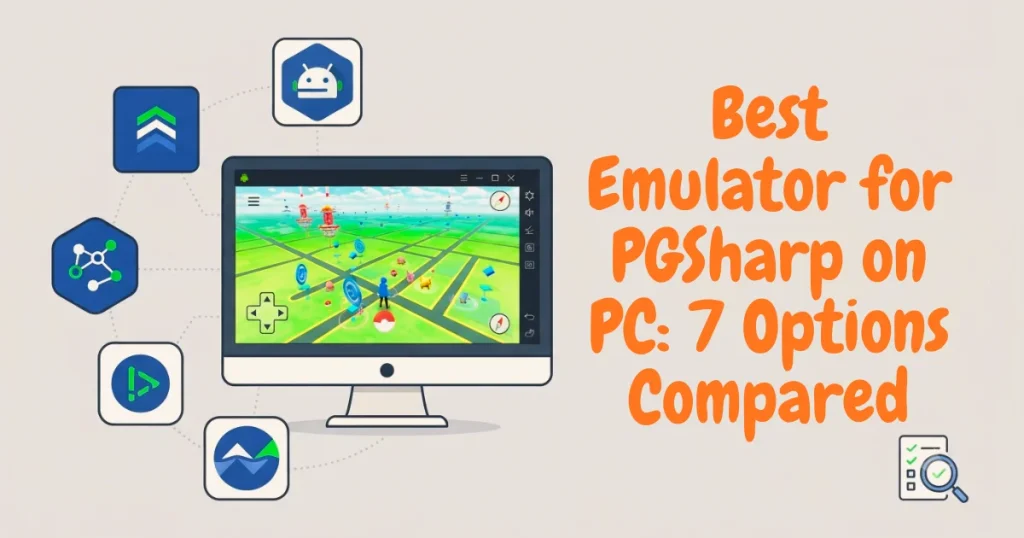
Best Emulator for PGSharp on PC: 7 Options Compared
If you want to use PGSharp on PC, you will need an Android environment that can run the PGSharp app. Since PGSharp is made for Android, choosing the right emulator can make a big difference in setup, performance, and overall experience.
But which emulator is best for PGSharp?
There is no single emulator that will be perfect for every computer. Your choice depends on your Windows version, RAM, processor, virtualization support, Android version, and how well the emulator works with the current PGSharp release.
In this guide, I have compared 7 Android emulators for PGSharp on PC, including BlueStacks, LDPlayer, MuMu Player, NoxPlayer, MEmu Play, Genymotion, and Andy. I will also explain what to check before choosing one so you can pick an option that makes sense for your own PC.
Quick Answer: Which Is the Best Emulator for PGSharp?
For most users, BlueStacks, LDPlayer, and MuMu Player are the first options worth checking because they are well-known Android environments for Windows.
However, I would not say that one emulator is automatically the best for everyone.
For example, an emulator that works well on one computer may use too much RAM on another. The Android version, graphics settings, virtualization, and current PGSharp compatibility can also affect the result.
So instead of choosing an emulator only because someone calls it “the best,” check these things first:
- Android version
- Windows compatibility
- RAM and CPU usage
- Hardware virtualization
- Graphics performance
- Keyboard and mouse controls
- Stability
- APK installation support
Why Is a Best Emulator for PGSharp?
A PGSharp emulator is simply an Android emulator that allows you to run Android applications on a computer.
PGSharp is designed for Android, so when people search for terms such as PGSharp for PC, PGSharp PC emulator, or PGSharp on Windows, they are usually looking for a way to run the Android application from their Windows computer.
An emulator creates an Android environment inside your PC. You can then install compatible Android applications inside that environment.
This means that there is an important difference between:
PGSharp for PC
and
a native Windows version of PGSharp.
An emulator does not turn PGSharp into a normal Windows .exe program. Instead, it provides an Android environment in which the Android application can run.
What Should You Look for in a PGSharp Emulator?
Before choosing an emulator for PGSharp, don’t focus only on popularity. Check the Android version, system requirements, virtualization, graphics support, and available controls to find an option that matches your PC.
| What to Check | Why It Matters | What to Look For |
|---|---|---|
| Android Version | PGSharp requirements can change, so an older Android environment may not work with newer releases. | Check the emulator’s Android version against the current PGSharp requirement. |
| RAM Usage | Emulators use your computer’s memory. Limited RAM can cause lag, freezing, or crashes. | Choose an emulator that runs comfortably with your available RAM. |
| CPU Performance | Running an Android environment alongside Windows requires processor resources. | A modern CPU generally provides smoother emulator performance. |
| Hardware Virtualization | Virtualization can significantly affect emulator performance. | Check for Intel VT-x, Intel Virtualization Technology, AMD-V, or SVM. |
| Graphics Support | Graphics performance can affect Pokémon GO and the emulator’s overall display and stability. | Check graphics compatibility, drivers, and available rendering options. |
| Keyboard & Mouse Controls | Good controls make Android applications easier to use on a desktop or laptop. | Look for keyboard mapping, mouse controls, and customizable controls. |
7 Best Emulators for PGSharp on PC
Here are the seven options I would consider when researching an emulator for PGSharp on PC.
1. BlueStacks
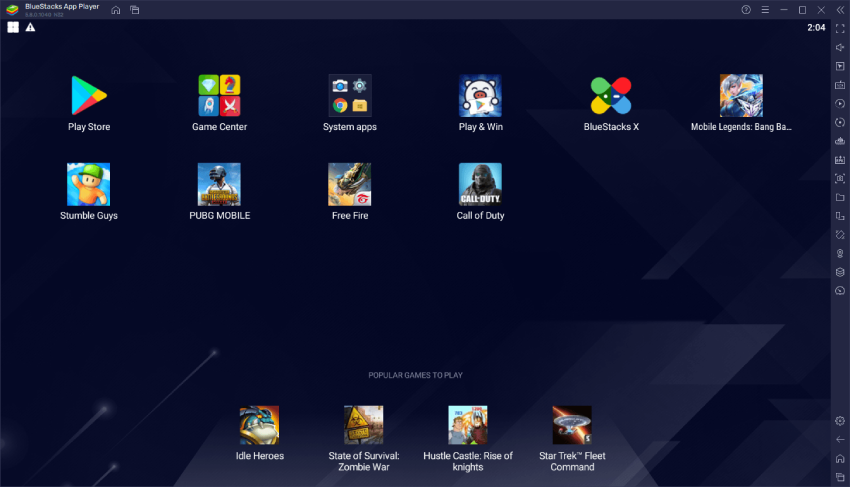
BlueStacks is one of the most well-known Android emulators for Windows and is a natural option to consider when looking for a PGSharp emulator for PC.
It provides an Android environment on a desktop computer and includes features such as keyboard controls, performance settings, and multi-instance functionality.
For a beginner, one of the biggest advantages is that BlueStacks has a familiar interface and is widely used for running Android applications on computers.
Pros
- Well-known Android emulator
- Beginner-friendly interface
- Keyboard and mouse controls
- Supports APK installation
- Multi-instance functionality
- Available for Windows
Cons
- Can use significant system resources
- Older PCs may experience lag
- Performance depends on your computer configuration
Who should try BlueStacks?
BlueStacks is worth considering if you have a reasonably capable PC and want a familiar Android environment with plenty of settings.
I would especially consider it if you already use BlueStacks for other Android applications.
2. LDPlayer
LDPlayer is another popular choice when people search for PGSharp LDPlayer or PGSharp emulator for PC.
It is designed primarily around Android gaming and provides keyboard mapping, performance controls, and multiple configuration options.
For users who want to run Android games and applications on Windows, LDPlayer is worth testing.
Pros
- Designed with Android gaming in mind
- Keyboard and mouse mapping
- Multiple configuration options
- Supports APK installation
- Available for Windows
- Different Android versions/builds may be available
Cons
- Performance can vary between computers
- Some users may experience bugs or compatibility problems
- Requires proper emulator configuration for good performance
Who should try LDPlayer?
LDPlayer can be a good option if you want an Android emulator with gaming-oriented controls and your PC has enough resources to run it comfortably.
If you specifically want to test PGSharp on LDPlayer, check the current PGSharp Android requirement against the Android version provided by the LDPlayer build you choose.
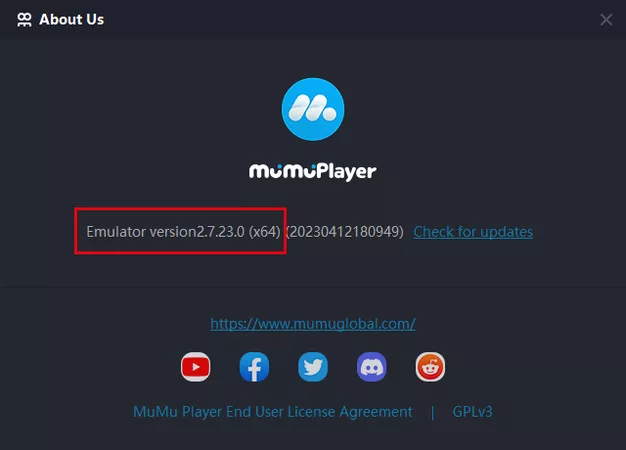
3. MuMu Player
MuMu Player is another Android emulator worth considering for people searching for a PGSharp PC emulator.
It focuses heavily on Android gaming and provides controls designed for desktop users.
The main reason to consider MuMu is that different emulator environments can behave differently on different computers. If one emulator does not perform well on your system, testing another option can make sense.
Pros
- Gaming-focused Android environment
- Keyboard and control mapping
- Supports Android applications
- Designed for larger-screen Android gaming
- Useful configuration options
Cons
- Compatibility can depend on the particular build
- Performance varies by PC
- Not every feature will behave identically across different Android environments
Who should try MuMu Player?
MuMu Player is worth testing if BlueStacks or LDPlayer does not give you the performance you want.
4. NoxPlayer
NoxPlayer is another established Android emulator for Windows.
It provides an Android-style interface and includes controls designed for running mobile applications and games from a desktop computer.
For users searching for NoxPlayer PGSharp, the important thing is not simply whether an emulator can install an APK. You should also check its Android version, performance, and current compatibility with the applications you want to run.
Pros
- Familiar Android interface
- Keyboard and mouse controls
- Configuration options
- Supports Android applications
- Designed for PC users
Cons
- Performance depends heavily on PC hardware
- Older configurations may struggle
- Compatibility should be checked with current software versions
Who should try NoxPlayer?
It can be an alternative if the first few emulators do not work well on your particular computer.
5. MEmu Play
MEmu Play is another Windows Android emulator that can be considered for running Android applications on a PC.
One useful feature is its support for different Android environments and configuration options.
Like other emulators, its actual performance depends on your computer rather than the emulator name alone.
Pros
- Android environment for Windows
- Keyboard and mouse mapping
- Multiple configuration options
- Useful for Android games and applications
- Can be tested on different PC configurations
Cons
- Uses system resources
- Performance varies between computers
- Some advanced settings may be confusing for beginners
Who should try MEmu Play?
MEmu can be worth testing if you want another option after trying the more commonly used emulators.
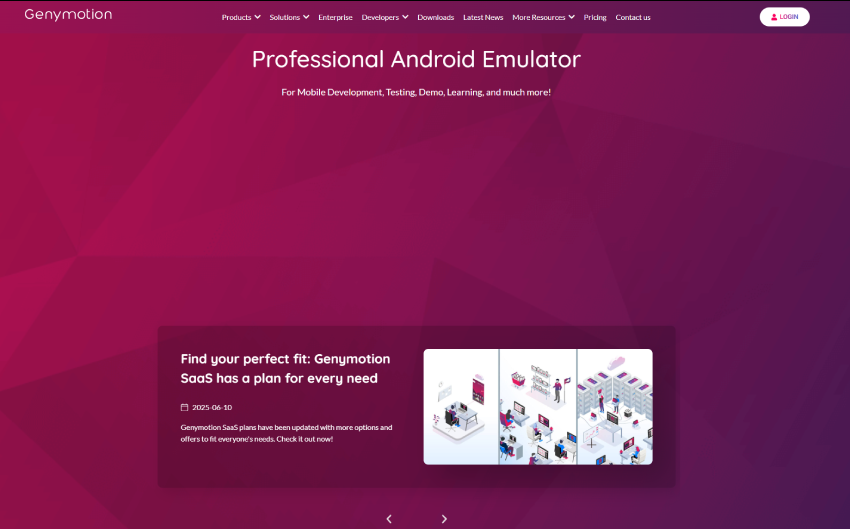
6. Genymotion
Genymotion is different from some of the gaming-focused emulators on this list.
It is well known as an Android development and testing platform and provides virtual Android devices for different use cases.
Because of its development-oriented nature, it may not be the first option I would recommend to a beginner who simply wants an easy gaming setup.
Pros
- Android virtual devices
- Advanced configuration options
- Useful for testing Android environments
- More technical control
Cons
- Not primarily designed for casual gaming
- Can be more complicated for beginners
- Google Play-related setup may not be as straightforward as consumer gaming emulators
Who should consider Genymotion?
It is more suitable for users who understand Android virtual environments and want more technical control.
For a normal beginner, one of the gaming-focused options above may be easier.
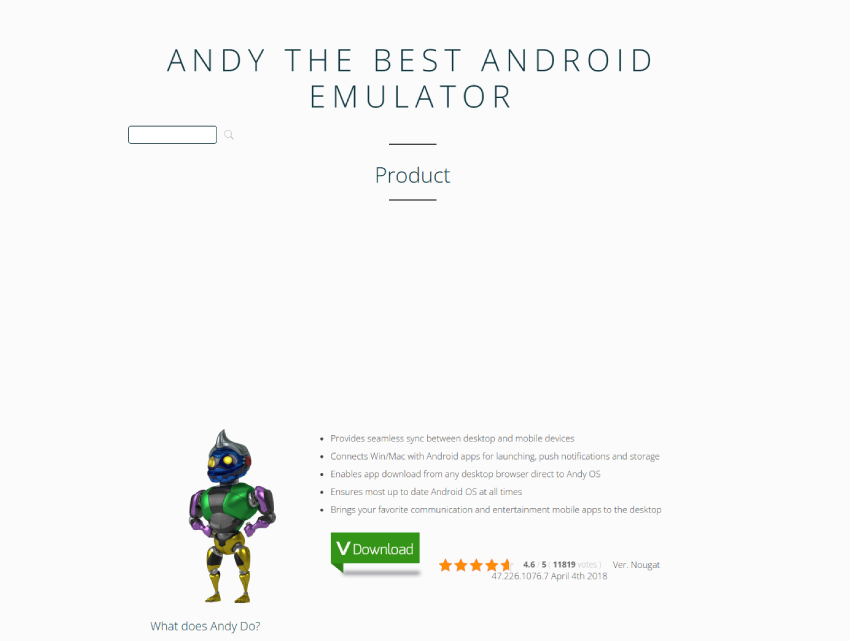
7. Andy
Andy is another Android emulator that has historically been used to run Android applications on desktop computers.
It can be considered as an alternative, but I would be more careful with older emulator options because Android compatibility changes over time.
Before using an older emulator for PGSharp, check:
- When it was last updated
- Which Android version it provides
- Whether it supports your Windows version
- Whether it is compatible with the current PGSharp requirements
Pros
- Android environment for PC
- Familiar concept for Android users
- Can run Android applications
Cons
- Older software may have compatibility limitations
- Current support should be checked
- May not be the first choice for a modern PC setup
Who should consider Andy?
Only consider it after checking its current compatibility and support status.
PGSharp Emulator Comparison
Here is a simple comparison to help you decide where to start.
| Emulator | Best For | Main Advantage | Possible Issue |
|---|---|---|---|
| BlueStacks | Beginners | Easy interface | Can use more resources |
| LDPlayer | Gaming users | Controls and performance options | Compatibility can vary |
| MuMu Player | Gaming | Android gaming features | Depends on build |
| NoxPlayer | General users | Customization | Hardware dependent |
| MEmu Play | Advanced users | Configuration options | Can require tweaking |
| Genymotion | Technical users | Android testing | More complicated |
| Andy | Alternative option | Simple Android environment | Older software concerns |
My advice: Don’t install all seven just because they are on a list. Start with one or two options that match your PC, then test stability and compatibility.
Which Emulator Is Best for PGSharp?
If you want the simplest answer, I would start by testing BlueStacks or LDPlayer, followed by MuMu Player if you need another option.
But I would not call one emulator the guaranteed “best.”
The best choice depends on your computer.
For example:
If you have a newer, powerful PC
You can test BlueStacks, LDPlayer, or MuMu Player and compare their performance.
If you have an older PC
Focus more on RAM usage and CPU load. A heavier emulator may create more problems than it solves.
If you are a beginner
Choose an emulator with a simple interface and easy configuration.
If you want more control
Look for an emulator that gives you more Android, graphics, and performance settings.
Can You Run PGSharp on Windows 11?
Yes, the general PC setup involves using an Android environment rather than installing PGSharp as a normal Windows application.
However, Windows 11 compatibility alone does not guarantee that PGSharp will work perfectly.
You should also check:
- Android version
- Emulator version
- Virtualization
- RAM
- CPU
- Graphics support
- Current PGSharp requirements
If you are specifically having problems on Windows 11, see our detailed guide:
Does PGSharp Work on Windows 11?
Can You Run PGSharp on Windows 10?
The same basic principle applies to Windows 10.
You need an Android environment capable of running the current PGSharp application.
Before choosing an emulator, check its current Windows support and Android version.
Also remember that the performance of an emulator depends more on the complete PC configuration than simply whether you have Windows 10 or Windows 11.
What If PGSharp Does Not Work in the Emulator?
Installing an emulator does not guarantee that PGSharp will work without problems.
You may encounter issues such as:
- PGSharp not opening
- Emulator crashing
- PGSharp getting stuck on loading
- Slow performance
- GPS/location problems
- Login problems
- Pokémon GO not loading
- Problems after a Pokémon GO update
These problems can have different causes, so changing the emulator is not always the first solution.
Check the Android version, emulator configuration, virtualization, system resources, and current PGSharp compatibility first.
For detailed solutions, read:
PGSharp Not Working on PC: Common Problems and Fixes
Tips for Better PGSharp Emulator Performance
If your Android emulator is slow, try these basic steps.
1. Close unnecessary programs
Chrome tabs, video editors, games, and other heavy programs can consume RAM and CPU.
2. Enable virtualization
Check your BIOS/UEFI settings if your emulator recommends hardware virtualization.
3. Don’t allocate all RAM to the emulator
Your Windows system also needs memory.
Giving the emulator too many resources can actually make the whole computer less responsive.
4. Keep your graphics drivers updated
Graphics-related problems can sometimes come from outdated drivers.
5. Use a suitable Android version
Don’t choose an emulator only because it is popular. Check whether its Android environment meets the current PGSharp requirement.
6. Avoid installing random APKs
Use the official PGSharp source whenever possible instead of downloading modified or unknown APK files from random websites.
Should You Use an Emulator or a Real Android Phone?
If you already have a compatible Android phone, you may find the normal Android setup simpler.
A PC emulator can be useful when you prefer:
- A larger screen
- Keyboard and mouse controls
- Desktop use
- Easier screen recording
- Running Android applications from your computer
A physical phone has different advantages:
- Portable
- Native Android environment
- No emulator overhead
- Usually simpler setup
There is no single option that is best for every user.
Is a PGSharp Emulator Safe?
An emulator itself is simply an Android environment running on a computer. However, the safety question also depends on the applications and APK files you install inside it.
For that reason:
- Download the emulator from its official website.
- Download PGSharp from an appropriate official source.
- Avoid modified APKs from unknown websites.
- Keep Windows and your security software updated.
- Be careful with applications asking for unnecessary permissions.
Also remember that using a modified third-party Pokémon GO client can involve account or gameplay risks. No emulator can guarantee that an account will never face action.
Frequently Asked Questions
What is the best emulator for PGSharp?
There is no single best emulator for every PC. BlueStacks and LDPlayer are reasonable starting points, while MuMu Player, NoxPlayer, and MEmu can also be tested depending on your computer.
Can I use PGSharp on PC without an Android phone?
A compatible Android environment can allow you to run the Android application from a PC, so a physical Android phone is not necessarily required for the emulator-based setup.
Is BlueStacks good for PGSharp?
BlueStacks is one of the Android emulators worth testing for PC users. Its performance will depend on your computer’s hardware and the current compatibility of the Android environment with PGSharp.
Is LDPlayer good for PGSharp?
LDPlayer is another option for users who want an Android gaming environment on Windows. Check the Android version and current PGSharp compatibility before setting it up.
Can I use PGSharp on Windows 11?
You can use an Android environment on Windows 11 to run compatible Android applications. The exact PGSharp experience depends on the emulator, hardware, Android version, and current software compatibility.
Can I use PGSharp on Windows 10?
Yes, the PC setup concept is similar on Windows 10: you need an Android environment that supports the current PGSharp requirements.
Why is my PGSharp emulator slow?
The most common things to check are RAM, CPU usage, virtualization, graphics settings, background applications, and the emulator’s Android configuration.
Which PGSharp emulator is best for low-end PC?
There is no universal low-end-PC winner. Look for an emulator that uses fewer resources and allows you to adjust CPU, RAM, and graphics settings. Test performance rather than choosing based only on a “best emulator” label.
Final Thoughts
Choosing the best emulator for PGSharp on PC is not really about finding one emulator that wins for everyone.
BlueStacks, LDPlayer, MuMu Player, NoxPlayer, and MEmu are reasonable options to investigate first, while Genymotion and older alternatives may be more suitable for specific users.
Your PC hardware, Android version, virtualization settings, emulator configuration, and the current PGSharp release all matter.
If you are just getting started, I would begin with BlueStacks or LDPlayer, check whether your PC runs the Android environment comfortably, and then move to another option if you experience compatibility or performance problems.
Most importantly, check the current PGSharp requirements before installing an emulator. An emulator that worked with an older PGSharp version may not necessarily be the right choice for a newer release.

Muhammad Younas is an expert in Pokémon Go enhancements, with a special focus on PGSharp. He provides in-depth guides and tips to help players make the most out of PGSharp for a smoother and more enjoyable gaming experience. Dedicated to staying up-to-date with the latest developments, Muhammad shares valuable insights to help both new and experienced players enhance their gameplay. Follow him for the latest updates and tricks in the world of Pokémon Go.