How to Update PGSharp Without Losing Data: Complete Guide 2026
How to Update PGSharp Without Losing Data: Complete Guide 2026
Updating PGSharp can feel nerve-wracking when you’re worried about losing your carefully configured settings, account data, or progress. If you’ve encountered the dreaded “PGSharp app not installed” error or the “Pokemon GO update required PGSharp” notification, you’re not alone. This comprehensive guide will walk you through exactly how to update PGSharp APK without uninstalling your current version, ensuring all your data remains intact.
Understanding PGSharp Updates: What You Need to Know
Before diving into the update process, it’s crucial to understand what happens when you update PGSharp. Unlike regular apps from the Google Play Store, PGSharp is a modified APK that requires manual installation. Each new release brings bug fixes, compatibility updates for the latest Pokemon GO versions, and sometimes new features.
When Niantic updates Pokemon GO, PGSharp developers must release a compatible version. This means staying updated isn’t just about getting new features—it’s essential for the app to function properly. The good news? You can update PGSharp without losing data if you follow the right steps.
Manual Update vs Auto-Update PGSharp: Which Method Is Better?
PGSharp doesn’t support automatic updates through app stores, so you’ll need to choose between two primary methods:
Manual Update Method: This involves downloading the latest PGSharp APK from the official website and installing it over your existing version. This method gives you complete control and is the most reliable way to update PGSharp without uninstalling.
In-App Update Notification: Sometimes PGSharp displays an in-app notification when updates are available. While convenient, this method can occasionally trigger the “PGSharp app not installed fix” requirement if something goes wrong during installation.
For maximum data safety, manual updating is recommended as it allows you to prepare properly and avoid common errors.
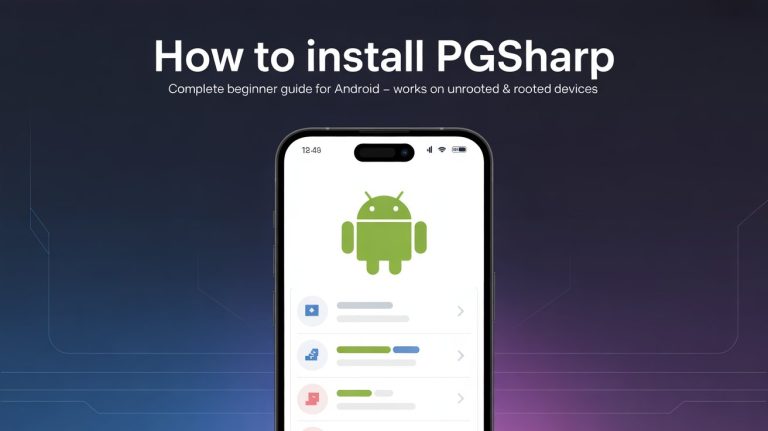
Step-by-Step: How to Update PGSharp APK Without Losing Data
Step 1: Backup Your Current Settings
Before attempting any update, take these precautionary measures:
- Screenshot your current PGSharp settings, including joystick configuration, walking speed, and custom settings
- Note down your current PGSharp version number (found in Settings > About)
- Ensure your Pokemon GO account is properly synced
- Write down any custom coordinates or saved locations
While updating shouldn’t erase this data, having a backup ensures you can restore everything if needed.
Step 2: Download PGSharp Latest Version 2026
Visit the official PGSharp website to download the newest APK file. Here’s what you need to verify:
Check Your Device Architecture: PGSharp offers two versions—PGSharp ARM64 vs ARMv7. Most modern devices use ARM64, but older phones may require ARMv7. Installing the wrong version can cause the “File Corrupted” error.
To check your device architecture:
- Install CPU-Z from the Play Store
- Open the app and check the “SOC” or “CPU” tab
- Look for ARM64-v8a (64-bit) or armeabi-v7a (32-bit)
Download the corresponding version for your device.
Step 3: Enable Installation from Unknown Sources
If you haven’t already enabled this setting:
- Go to Settings > Security (or Privacy)
- Enable “Install Unknown Apps” or “Unknown Sources”
- Select your browser or file manager
- Toggle on “Allow from this source”
Android 8.0 and later require you to grant permission per-app, while older versions have a universal setting.
Step 4: Install the Update (Overwriting PGSharp APK)
This is the critical step for updating PGSharp without losing data:
- Locate the downloaded APK file (usually in Downloads folder)
- Tap the file to begin installation
- When prompted, select “Install” or “Update”
- Important: Do NOT select “Uninstall” if prompted
- Wait for the installation to complete
The key here is overwriting PGSharp APK rather than uninstalling and reinstalling. Android recognizes the app signature and preserves your data when you install over an existing app.
Step 5: Launch and Verify
After installation:
- Open the updated PGSharp app
- Check Settings > About to confirm the new version number
- Verify your account is still logged in
- Review your settings to ensure everything is preserved
- Test basic functions like joystick movement and teleportation
If everything looks correct, you’ve successfully completed the update without data loss.
Troubleshooting Common PGSharp Update Errors
PGSharp App Not Installed Fix
This error typically occurs when:
- You downloaded the wrong architecture version (ARM64 vs ARMv7)
- The APK file is corrupted
- There’s insufficient storage space
- Android security is blocking the installation
Solutions:
- Delete the downloaded APK and re-download it
- Verify you have at least 500MB free storage
- Temporarily disable antivirus apps
- Ensure you downloaded from the official PGSharp website
- Try installing with a different file manager
Pokemon GO Update Required PGSharp
When Pokemon GO releases a major update, you’ll need a compatible PGSharp version:
- Check the PGSharp website or Discord for update announcements
- Wait for the PGSharp team to release a compatible version (usually within 24-48 hours)
- Download and install the updated PGSharp APK
- Do not update Pokemon GO through the Play Store—PGSharp includes the necessary Pokemon GO version
PGSharp Update Error “File Corrupted”
This frustrating error has several potential causes:
Solution Steps:
- Clear your browser cache and re-download the APK
- Download using a different browser (Chrome, Firefox, or Samsung Internet)
- Use a VPN if your region has download restrictions
- Verify the file size matches what’s listed on the official website
- Check if your antivirus quarantined or modified the file
Settings Not Saving After Update
If your settings disappeared after updating:
- Check if you accidentally cleared app data during the process
- Restore from your screenshot backups
- Reconfigure settings manually (they should save properly now)
- Ensure you’re not running PGSharp in multiple profiles or work profiles
Clear Cache vs Clear Data in PGSharp Update
Understanding the difference is crucial:
Clear Cache:
- Removes temporary files
- Safe to do before updating
- Won’t delete settings or login information
- Can help resolve minor glitches
Clear Data:
- Deletes all app data including settings
- Logs you out of your account
- Resets app to factory state
- Should be avoided unless absolutely necessary
Before updating, you can safely clear cache through Settings > Apps > PGSharp > Storage > Clear Cache. However, avoid “Clear Data” unless you’re willing to reconfigure everything.
Best Practices for Seamless PGSharp Updates
Follow these tips to ensure smooth updates every time:
1. Stay Informed
Join the official PGSharp Discord or Telegram channel to receive update notifications immediately. This prevents you from launching the app when it’s incompatible with the latest Pokemon GO version.
2. Update During Off-Peak Hours
Avoid updating during Pokemon GO events or when you’re actively playing. Choose a time when you can afford potential downtime if something goes wrong.
3. Maintain Regular Backups
Take screenshots of your settings monthly. This simple habit can save hours of reconfiguration if you ever need to perform a clean install.
4. Check Compatibility First
Always verify that the new PGSharp version is stable by checking community feedback before updating. Wait a day or two after release if you’re risk-averse.
5. Keep the Old APK
Before deleting the previous version’s APK file, ensure the new version works perfectly. This allows you to rollback if necessary (though you’ll lose any progress made in the interim).
Advanced Update Scenarios
Updating from Very Old Versions
If you’re several versions behind:
- Check if you can directly update to the latest version
- Some major updates may require intermediate steps
- Read the changelog on the official website for specific instructions
- Consider joining the PGSharp community forums for version-specific advice
Switching Between Standard and Paid Versions
If you’re upgrading from PGSharp Standard to PGSharp Paid (or vice versa):
- The update process remains the same
- Your login credentials will transfer
- Settings may need manual reconfiguration
- Subscription features will activate upon login
Updating on Rooted Devices
Rooted devices may encounter additional challenges:
- Ensure Magisk Hide is properly configured
- Hide root from Pokemon GO and PGSharp
- Use a dedicated module like “Universal SafetyNet Fix”
- Clear Play Services cache before updating
- Reboot after installation for best results
How to Save PGSharp Settings Before Update
While the standard update process preserves settings, you can take extra precautions:
Manual Export Method
- Open PGSharp Settings
- Navigate to each configuration section
- Screenshot all custom settings pages
- Note down:
- Walking speed preferences
- Joystick size and position
- Auto-walk and route settings
- Enhanced throw settings
- Cooldown timer preferences
- GPX route configurations
Using Third-Party Backup Apps
Some users employ Android backup apps like:
- Titanium Backup (requires root)
- Helium Backup (no root required)
- adb backup command via computer
However, these methods are advanced and not officially supported. The screenshot method is simpler and equally effective for most users.
Frequently Asked Questions
Will I lose my Pokemon GO account when updating PGSharp?
No, your account data is stored on Niantic’s servers, not in the PGSharp app. Updating PGSharp won’t affect your Pokemon, items, or progress.
Can I use PGSharp while an update is downloading?
Yes, you can continue using the current version until you’re ready to install the update. However, if Pokemon GO itself has been updated, you may receive compatibility warnings.
How often should I update PGSharp?
Update whenever a new version is released, especially if Pokemon GO has been updated. Typically, this means updating every 2-4 weeks, though critical updates may come more frequently.
What happens if I accidentally uninstall instead of update?
You’ll lose your local settings but not your Pokemon GO account. Simply reinstall PGSharp, log in, and reconfigure your settings using your backup screenshots.
Is it safe to update PGSharp during a Pokemon GO event?
Generally yes, but verify the update is stable first by checking community feedback. If you’re actively hunting rare spawns during an event, wait until after to update.
Conclusion: Updating PGSharp Safely and Efficiently
Updating PGSharp without losing data is straightforward when you follow the proper procedures. The key is to overwrite the existing installation rather than uninstalling first, download the correct architecture version for your device, and maintain basic backups of your settings.
Remember these essential points:
- Always download from the official PGSharp website to avoid corrupted files
- Choose the right version: PGSharp ARM64 vs ARMv7 based on your device
- Update by installation, never by uninstalling first
- Clear cache if needed, but avoid clearing data
- Screenshot your settings as a precaution
- Stay informed about updates through official channels
By following this guide, you can confidently update to PGSharp latest version 2026 download while preserving all your configurations, settings, and game progress. Whether you’re troubleshooting the “PGSharp app not installed” error or simply want to stay current with the latest features, proper update procedures ensure a smooth experience.
Keep your PGSharp updated, stay safe from detection, and enjoy enhanced Pokemon GO gameplay with all your data intact. The update process becomes routine once you’ve done it a few times, and maintaining your app version ensures the best possible performance and compatibility.

PGSharppokemon is an expert in Pokémon Go enhancements, with a special focus on PGSharp. He provides in-depth guides and tips to help players make the most out of PGSharp for a smoother and more enjoyable gaming experience. Dedicated to staying up-to-date with the latest developments, Muhammad shares valuable insights to help both new and experienced players enhance their gameplay. Follow him for the latest updates and tricks in the world of Pokémon Go.